Troubleshooting issues can sometimes be challenging when running applications in Docker containers. Application error logs are helpful but often don’t provide the full picture. This is where Docker logs come into play. In this article, we’ll explore everything about Docker logs.
Imagine you’re running a web application inside a Docker container. Your application suddenly starts facing connectivity issues, and users report that certain features are not working. You check the application’s error logs and find this message:
Error: Unable to connect to the external API.
While this error message indicates a connectivity issue, it lacks detail. Is the problem with the external API, network configuration, or something else? Application logs often leave us with more questions than answers.
Here’s where Docker logs come to the rescue.
Docker provides a centralized logging solution that captures all output from processes running inside a container, including standard output (stdout) and standard error (stderr). This means you get a comprehensive view of everything happening within the container, not just application-specific events.
With Docker logs, you can:
Docker provides convenient commands for accessing and managing container logs. Here’s how you can access Docker logs:
1. Docker Log Commands:
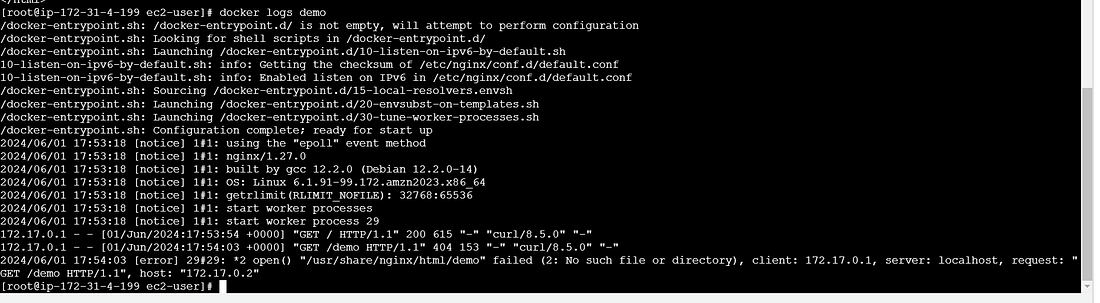
docker logs command
f flag allows you to follow the log output of a container in real-time. It continuously streams new log entries as generated, similar to tail -f in Unix systems.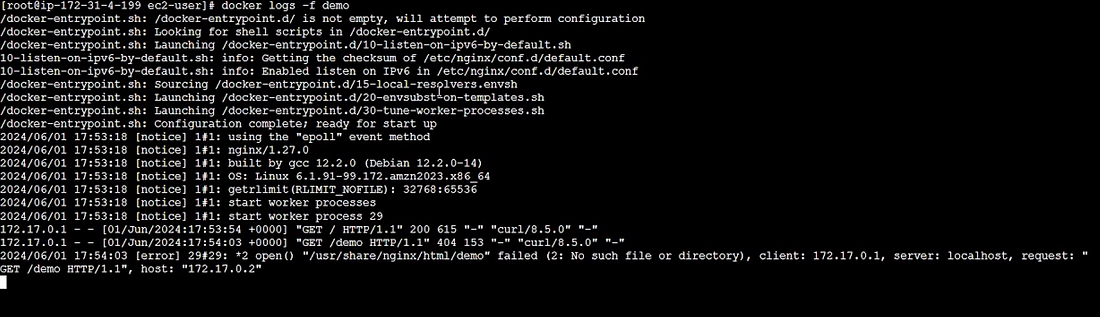
docker logs -f command
-tail option to limit the number of lines retrieved from the end of the log. Replace <number> with the desired number of lines to display.